


Why Is My PoE Camera Not Being Detected by the NVR?
- Administrator A
- Jul 15
- 4 min read

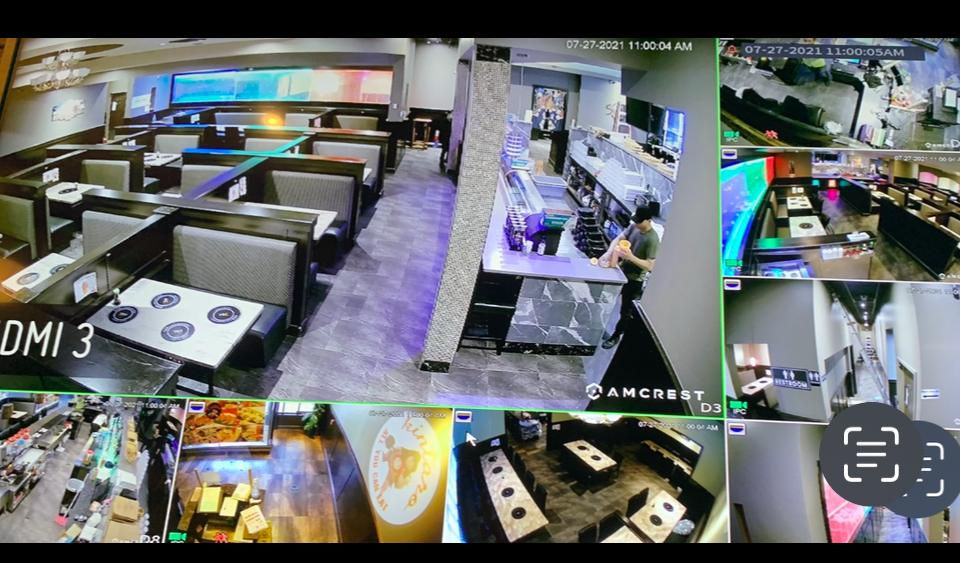
Few things are more frustrating than setting up a state-of-the-art surveillance system only to find yourself staring at a black screen with a "No Video" or "Network Disconnected" error. When a PoE camera is not being detected by the NVR, the issue typically boils down to three primary culprits: a lack of physical power, damaged copper cabling, or an IP address configuration mismatch.
At Cleveland Security Cameras, our technicians face this exact issue out in the field almost every single day. Whether we are completing a fresh commercial security camera installation in Cleveland or helping a homeowner in Lakewood fix their DIY setup, we rely on a structured, step-by-step diagnostic sequence to quickly pinpoint the problem.
Before you assume you have a dead device, let’s walk through the exact troubleshooting framework our pros use to get cameras up and running again.
1. Map Out Your Network Environment
Before diving into hardware tests, it helps to visualize how your camera connects to your recording brain. If you are using an external PoE switch to ease the load on your NVR, your layout likely mirrors the diagram below.
If a single link in this chain breaks—whether it's the cable run, the local switch port, or the IP configurations—the connection drops.
2. Isolate the Fault: Physical vs. Software
Most CCTV troubleshooting jobs fail because people jump straight into NVR settings when the camera doesn't even have power—or they spend hours replacing Ethernet cables when the camera simply has an IP conflict.
To save you hours of trial and error, use this quick reference table to match your symptoms with the most likely root causes:
Symptom | Most Likely Cause | Troubleshooting Action |
No IR lights glowing in the dark; NVR port LEDs are completely dark | The camera is not receiving physical power. | Perform a Bench Test using a short patch cable. |
Infrared lights turn on, but no video stream displays on the NVR | Data path failure or a bad RJ45 cable crimp. | Re-terminate the RJ45 ends; check for water in the connector. |
Camera shows "Inactive" or "Invalid Password" status | The camera is brand new or has mismatched security credentials. | Manually activate the camera and set the admin password. |
"Network Unreachable" or IP mismatches in camera menu | Subnet mismatch (the camera is on a different network scheme). | Reset the camera to DHCP to auto-assign a fresh IP address. |
Random dropouts when night vision / spotlight kicks in | Exceeded PoE power budget on the NVR/Switch. | Unplug non-essential cameras or upgrade to a dedicated PoE switch. |
3. The Step-by-Step Diagnostic Sequence
If your camera has gone completely dark, follow this precise sequence to locate and resolve the hardware or software block.
1.Perform the Physical Power Check:2 Minutes.
Before checking any software, we must confirm the camera is actually powered on. Go to the physical camera and cover the lens completely with your hands or a dark box to simulate night.
After roughly 10 seconds, you should hear a faint "click" (the IR cut filter moving) and see the infrared LEDs glow red. If you see no lights, your camera has no power. Move to Step 2. If you see lights, your camera has power but lacks a data path; skip to Step 3.
2.Run a Local Bench Test:10 Minutes.
If the camera didn't power up on its mount, dismantle it and bring it straight to your NVR. Plug the camera directly into an open port on the NVR using a short, factory-made 3-foot Ethernet patch cable.
If the camera comes online immediately, the long cable run inside your walls is either physically damaged, too long (exceeding the standard limit of 328 feet), or has suffered water damage in the external RJ45 connector boot.
3.Resolve IP Subnet Conflicts:15 Minutes.
If the camera powers up but is still "invisible" to the NVR, they might be on different subnets. Many NVRs host internal subnets (such as 192.168.254.x). If you previously configured the camera on your home router, it may have a fixed static IP address (like 192.168.1.50).
Use a small paperclip to hold the physical reset button on the camera for 15 seconds while powered. This resets the camera back to factory defaults and forces it into DHCP mode, allowing the NVR to assign it an compatible IP address automatically.
4.Activate and Update Security Credentials:10 Minutes.
Modern NDAA-compliant cameras do not ship with generic passwords. If you are installing a newer camera, it will often register as "Inactive" on the NVR camera-management screen.
Log into your NVR's backend system, click on the camera list, find the "Inactive" camera, and assign it a strong administrator password. If you are mixing brands (like a Dahua camera on a Hikvision NVR), make sure you have enabled the universal ONVIF protocol inside the camera's internal settings.
A Quick Warning on Outdoor CCTV Cabling: Cleveland winters and humid Great Lakes summers are incredibly tough on outdoor security cameras. If your RJ45 copper connections are not protected by a waterproof junction box or weatherproof cable boots, humidity can corrode the copper pins inside your cable end. This will slowly kill the data connection long before it stops carrying basic electrical power.
When to Call in the Cleveland Security Camera Experts
If you have tried resetting the camera, checked your cables, verified your IP addresses, and your camera still refuses to communicate with the NVR, it might be time for professional assistance. Complex network routing issues, faulty PoE switches, or failed internal hardware require commercial-grade network testers and specialized diagnostic tools.
Whether you need a full system diagnostics check, commercial camera configurations, or a brand-new security camera installation in Cleveland, Ohio, our local team is here to help keep your property fully protected.
Get Your Cleveland Security System Running Flawlessly Today!
Don't let a blind spot leave your business or home vulnerable. If you are struggling with a persistent IP camera issue or want a professional, bulletproof security system installed, our local Northeast Ohio technicians are ready to assist.
Call Us Directly: [216-333-8245]
Email Our Techs: [contact@clevelandsecuritycameras.com]
Locally Owned & Operated: Proudly serving Cleveland, Akron, Elyria, and the surrounding areas.
Related Troubleshooting Guides
How to Factory Reset a Hikvision Camera Without a Physical Reset Button
Why Your Security Camera Night Vision is Blurry (and How to Fix It)
How to Correctly Calculate Your System's Total PoE Power Budget
The Ultimate Guide to Outdoor Weatherproof RJ45 Cable Terminations


Comments