


How to Factory Reset Ubiquiti Devices: The Ultimate 2026 Guide for UniFi & airMAX
- Administrator A
- Apr 24
- 2 min read

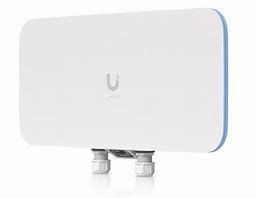
How to Factory Reset Ubiquiti Devices: The Ultimate 2026 Guide for UniFi & airMAX
Whether you are troubleshooting a failing adoption loop, migrating to a new UniFi Console, or resetting an inherited airMAX bridge, knowing the correct reset procedure is critical. In 2026, Ubiquiti hardware spans from enterprise switches to long-range wireless antennas, and each has its own "handshake" for a factory restore.
In this guide, we break down the three most reliable ways to reset your Ubiquiti security cameras, antennas, and network switches.
1. How to Factory Reset UniFi Protect Cameras (G3, G4, G5)
Locked out of a camera or moving it to a new NVR? Use these methods:
The Physical Method (Most Reliable): 1. Keep the camera powered via PoE. 2. Locate the Reset Pinhole (usually near the Ethernet port or under the lens ring). 3. Use a paperclip to press and hold for 10–15 seconds until the LED ring flashes.
The Software Method (Cleanest): * Log into UniFi Protect → Select the Camera → Settings → Manage → Unmanage. This wipes the camera and makes it ready for a new "Adoption."
2. How to Factory Reset airMAX Antennas (PowerBeam, NanoStation, LiteBeam)
If you are resetting a point-to-point bridge, the timing is everything.
Powered On: Ensure the antenna is powered via the PoE injector.
The Button: Locate the reset button on the bottom of the device (near the RJ45 port).
The 15-Second Rule: Press and hold the button for 15 seconds.
LED Pattern: Watch the signal strength LEDs. When they begin to "dance" or flash in a specific sequence, release the button.
Default Access: The antenna will reboot to its default IP: 192.168.1.20.
Username: ubnt | Password: ubnt
3. How to Factory Reset UniFi Switches & Access Points
UniFi switches (from the 8-port Lite to the 48-port Enterprise) use a standardized reset button.
The Hardware Button: Press and hold the reset button for 5–10 seconds until the status LED turns white (indicating it is ready for adoption).
The SSH Method (Advanced): If you can ping the switch but can't access the UI:
SSH into the device (default: ubnt/ubnt).
Run the command: set-default
The switch will immediately reboot with factory settings.
4. Pro Tip: The UniFi "Recovery Mode" (TFTP)
If your device is "bricked" (the LED is flashing white/blue/off), you may need TFTP Recovery.
Power off the device.
Hold the reset button while plugging in the power.
Keep holding for about 8-10 seconds until the recovery LED pattern starts.
Use a TFTP client to push the latest firmware .bin file to 192.168.1.20.
SEO Keywords for This Post:
Factory reset Ubiquiti UniFi camera
Reset airMAX antenna to factory defaults
Ubiquiti switch reset button location
UniFi G5 Pro hard reset
Ubiquiti default IP 192.168.1.20
How to reset UniFi AP via SSH
Ubiquiti PoE antenna recovery guide 2026
Need Expert Network Support in Cleveland?
Managing a complex Ubiquiti deployment across multiple sites? At Cleveland Security Cameras, we specialize in industrial-grade networking and surveillance architecture. From 16ft pole-mounted antennas to enterprise-core switching, we ensure your infrastructure is secure and optimized.
Contact Cleveland Security Cameras today at 216.333.8245 or visit clevelandsecuritycameras.com for a professional consultation.


Comments